Will teach you the fundamentals of working in R by walking through a ‘typical’ bioinformatics workflow.
We will work slowly and there will be repetition. You will build good habits through experience.
At the end of this course you will grasp the fundamentals and be in a good position to work with google, llms, supervisors and colleagues to solve specific problems and challenges.
Workshop aims
We will:
Set up a new Project in RStudio to help manage all our files.
Import data into RStudio.
Clean and tidy the data.
Visualise the data for ourselves.
Carry out “data wrangling” (getting the data into the shapes and formats we need).
Visualise the data for presentation.
Objectives for the course
Learn how to use RStudio and Projects to keep work organised.
Learn the fundamentals of the R programming language: functions, objects and packages.
Develop the habit of writing readable, reproducible code.
Be able to interpret errors and warnings.
Understand the format of data in R.
Use the dplyr functions for data preparation and processing (“wrangling”).
Be able to create basic visualisations of your data.
On the topic of LLMS
Many llms write very good R code if given accurate context and clear requests.
Many llms will struggle to solve the issues you encounter in R because you don’t know what the issue is.
During this workshop, please refrain from using llms to solve exercises. You need to practice doing these tasks.
The R programming language
Created in 1993 by Dr. Ross Ihaka and Dr. Robert Gentleman at the University of Auckland, Aotearoa New Zealand.
Widely used in statistics and biological sciences.
Free, flexible, supported by the community.
Base R was used to build packages that accomplish specific tasks.
Base R packages includes a mix of styles and formats.
Challenging to learn!
The tidyverse dialect
A series of packages designed from the ground up to work together.
Uses a consistent and logical style with a shared format.
Human readable, intuitive, easy to learn.
Highly popular, well documented, many resources available.
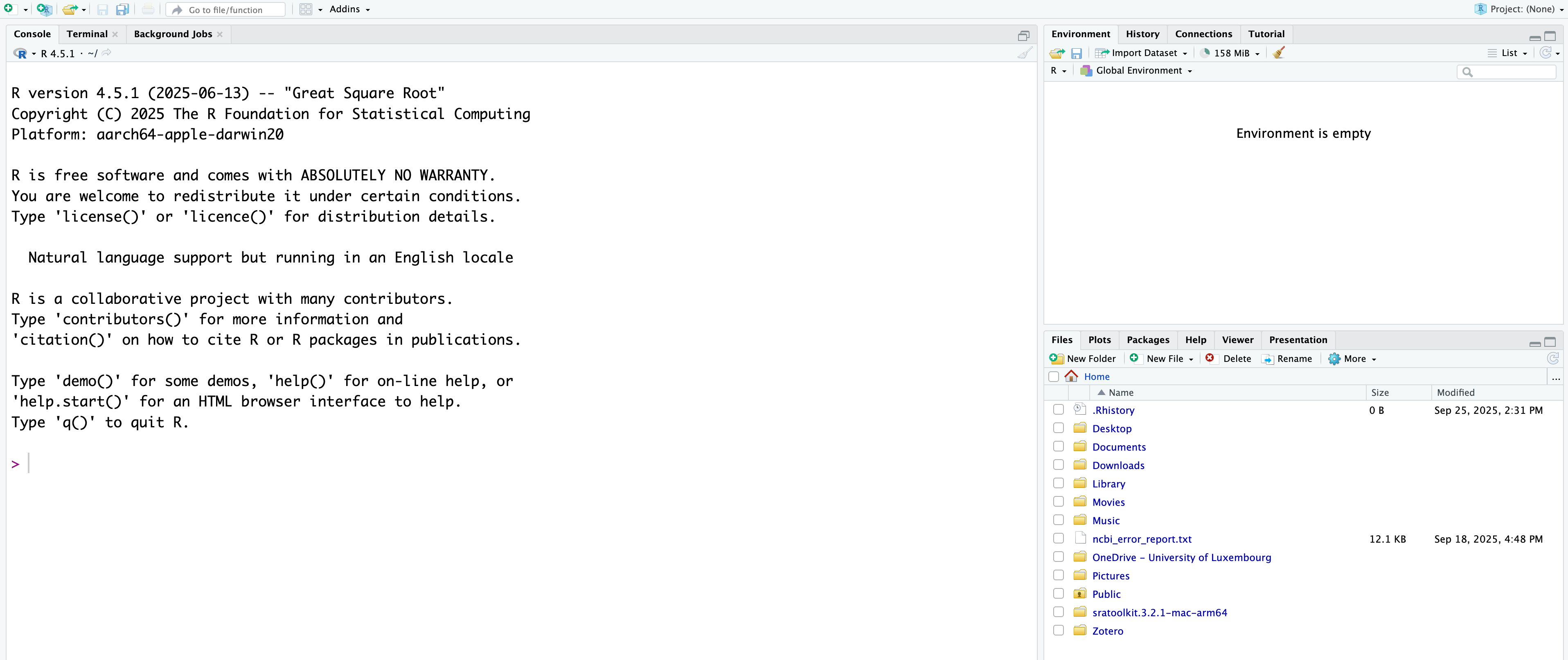
Analogy: R is the engine, RStudio is driver’s seat.
Customising RStudio: adding a source pane
It is best practice to write all code in a document to be saved.
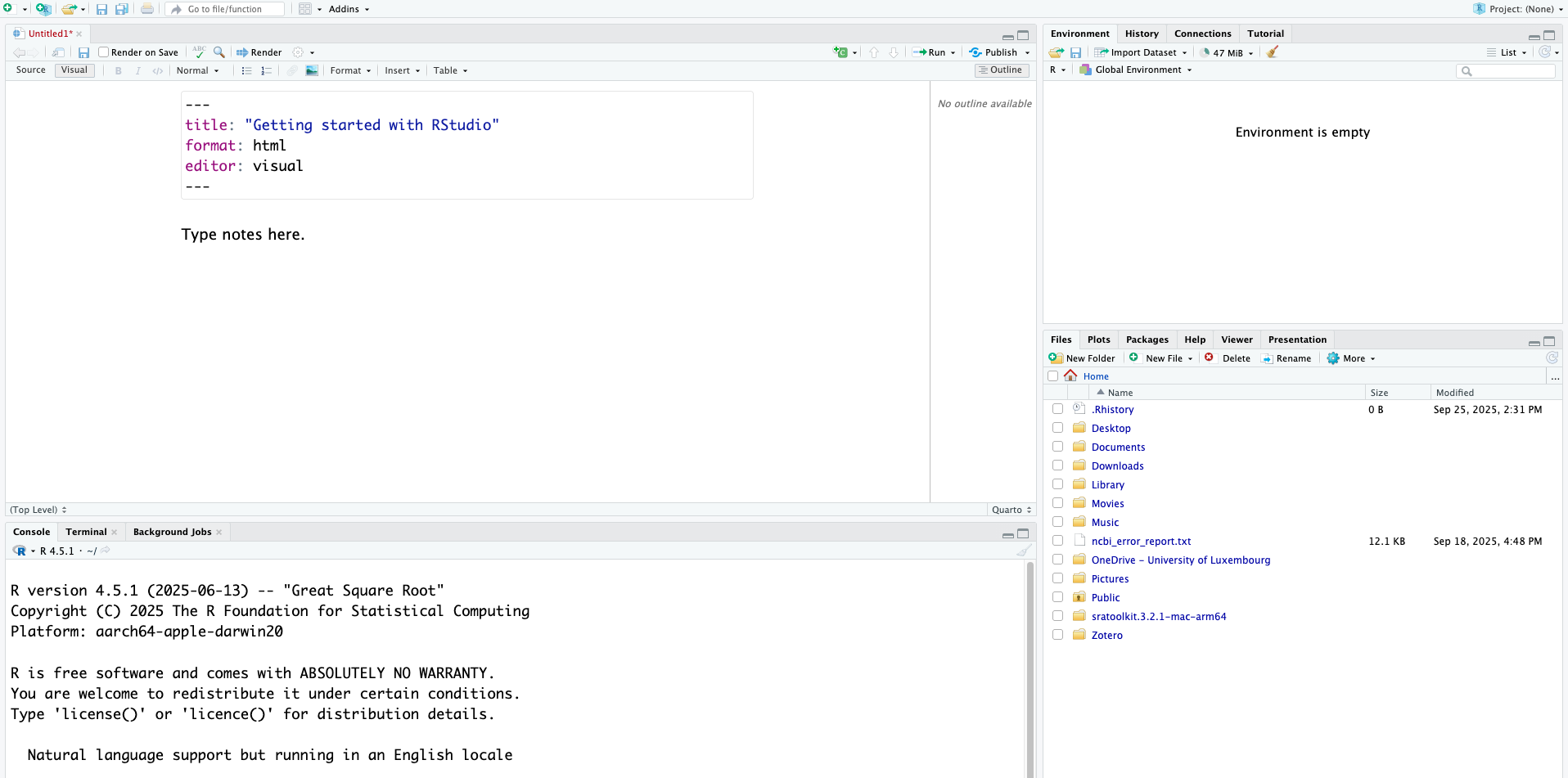
Click File > New File > Quarto Document.
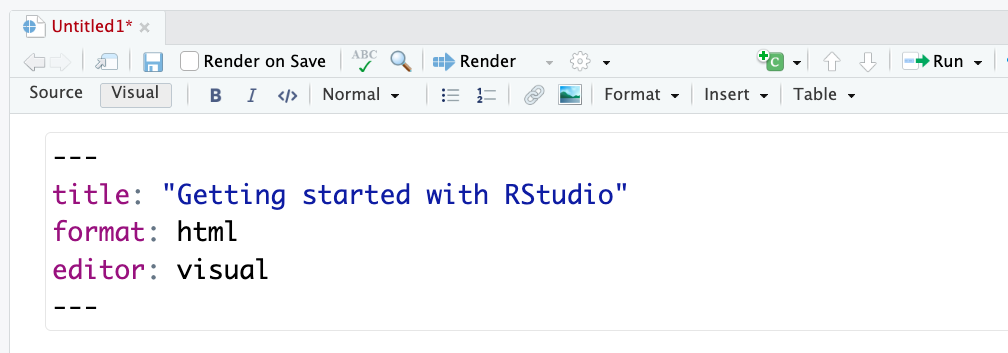
Give this file the title: “Getting started with RStudio” and click “Create Blank Document” on the bottom left.
We will use this new space to write our code and our notes.
Your screen should now look like this:
Customising the RStudio layout
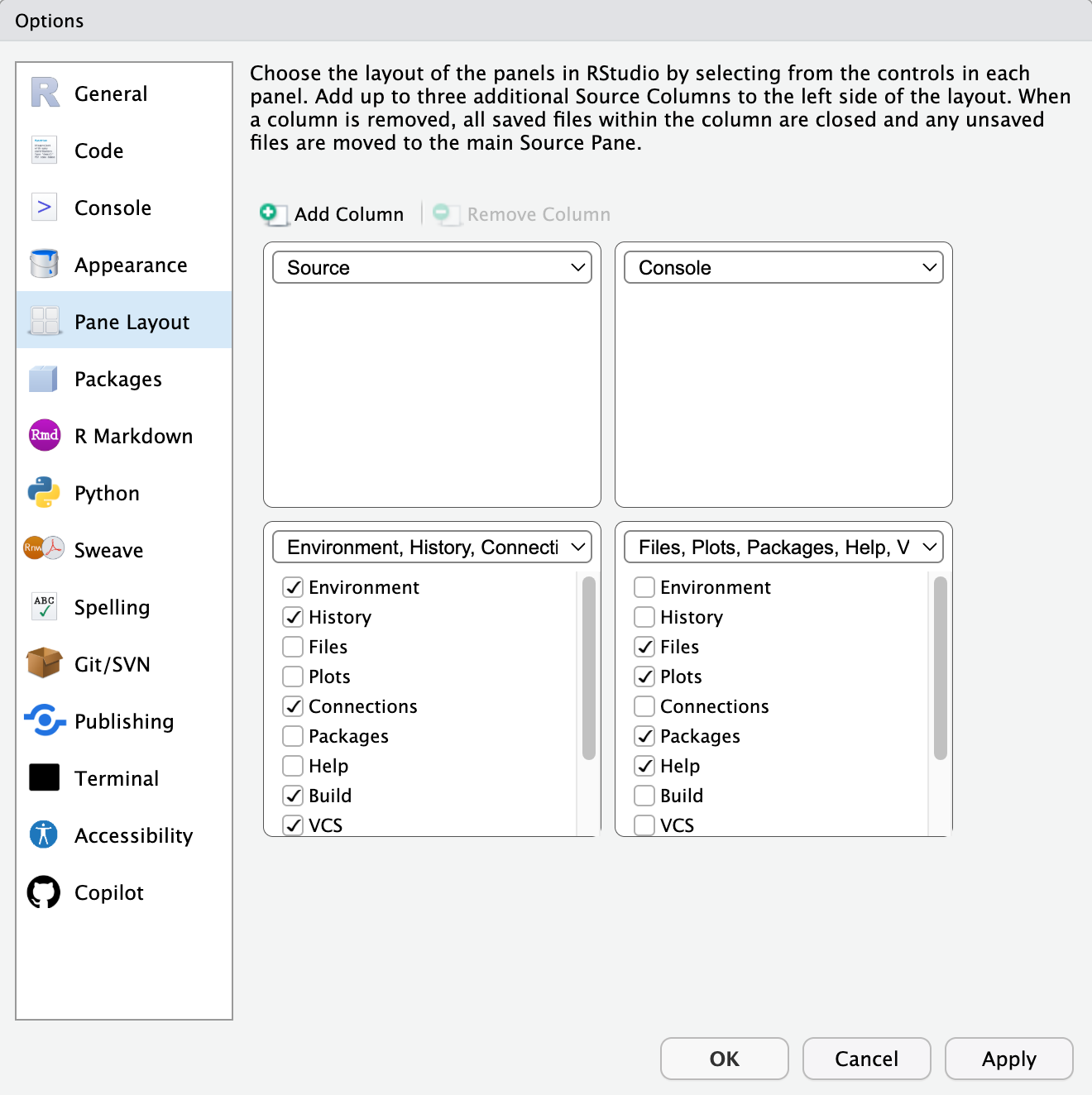
We can rearrange the layout of the four panes.
Click Tools > Global Options to bring up the options window.
Select the “Pane Layout” tab, and use the drop-down arrows to set the four panes to be Source, Console, Environment, and Files.
Let’s write and run some R code
We will write and run code directly from the source document we just opened.
We store all code in “chunks”. To add a chunk, click on the button that looks like a green square with a white “C”, and a small green “+” in the top left. It should be to the left of the “Run” button.
Code chunks
Within the code chunk, type some basic arithmetic (e.g., 5 + 9).
Run the chunk with the green arrow on the right.
Code chunks cont
We should see the code and the output appear in the console.
This is how we work in R: write code in a document, run the code, output is either displayed on the screen or saved as files.
It’s your turn!
Buttons are slow - use shortcuts!
Use either option + command + i (Mac) or Ctrl + Alt + i (Windows) to add a new code chunk.
In the new chunk write:
6+6
[1] 12
4*12
[1] 48
Click anywhere on the line that says 6 + 6 and use command + return (Mac) or Ctrl + enter to run the code.
Save the file so that this code can be accessed later.
Group discussion about files
Where did you save your file?
What did you call your file?
Can you locate that file on your device right now?
File locations and names
Modern devices (including most Apple products) automatically store files and make them available as “Recent documents”.
Result: we don’t need to think about where our files are going.
In bioinformatics we need to think about where our files are at all times.
Projects
RStudio uses “Projects” to manage files.
Use one project per topic:
This workshop should be one project.
An assignment for a paper would be one project.
A thesis, dissertation, or book would be one project.
Projects cont: what is a project?
Projects keep your work together and organised.
Each project is self-contained and portable.
Sets your working directory and controls file paths.
Practically: a project is a single directory with a .Rproj file that manages how RStudio interacts with other files you are working with.
Starting a Project in RStudio (Demonstration)
Watch while the instructor creates a new project.
File > New Project > New Directory > New Project
Set Directory name to “intro_to_r”. Create project as a subdirectory of ~/Documents.
Select Create Project.
RStudio will re-start.
It’s your turn!
Start a new project
Set Directory name to “intro_to_r”.
Create project as a subdirectory of ~/Documents.
Look for the “intro_to_r.Rproj” file in the files Pane.
Open a new Quarto document (File > New File), call it “Day 1” and save it as “day_1.qmd”.
RStudio should default to saving day_1.qmd to your project directory.
Customising RStudio
RStudio has many user options.
We will use Global Options to set ‘soft wrap’, the native pipe, and set an editor theme.
Follow me!
Let’s customise our RStudio interface
It’s your turn!
Exercise: Customise your RStudio
Under Tools (to the right of File), select Global Options.
In the Code tab, tick “Soft-wrap source files”.
In the Appearance tab:
Adjust the Editor font size and Editor font to suit you (the default font is Monaco).
Choose an Editor theme. You will spend a long time looking at your RStudio screen, we recommend something with high contrast that is not too hard to look at. Try these examples:
Chrome, Crimson Editor and Dreamweaver are gentle light themes.
Cobalt, Idle Fingers and Pastel on Dark are gentle dark themes.
What is your opinion on the Gob editor theme?
Project wrap-up
What questions do you have about projects?
The bioinformatician’s workflow
Almost any project will include the following steps:
Import data
Exploratory analysis
Data wrangling
Visualisations and other outputs
Importing data
R is primarily used for handling ‘flat’ data: rows and columns.
The most common type of flat data file is the CSV (comma separated values).
Typically, the first row will contain column names and is referred to as the “header”. Rows underneath the header contain data for each column, with columns separated by commas.
The csv format
Importing data: setting up
First, store the data within a /data subdirectory.
Second, install and load packages for importing data.
It’s your turn!
Exercise: storing data
Go to https://tinyurl.com/penguinData2025. Use the download button to get a local copy of the file.
In your intro_to_r project directory, create a subdirectory called data.
Copy/move the penguin_dataset.csv file to the new data directory.
Then:
Open a new quarto document with the title “Intro to R Day 1”.
Save it as day_1.qmd
Type “## Setup” (this should appear as a heading).
Type “### Packages”
Packages
Packages are collections of additional data or functions that extend the R language.
We can equate packages with apps.
To use a package requires two steps:
Install the package from a remote repository (one-time only)
Load the package into RStudio (every session)
Hex stickers
It’s your turn!
Install and load the tidyverse
Create a code block in your quarto doc, add the code below, and execute:
Install packages - run this the first time you work with a new package.
install.packages("tidyverse")
Load packages - run this every time you work with the package.
We just saw the head() function. head() and tail() print the first, or last, six rows of the object.
head(penguins, 4)
# A tibble: 4 × 8
  species island    bill_len bill_dep flipper_len body_mass sex     year
  <chr>   <chr>        <dbl>    <dbl>       <dbl>     <dbl> <chr>  <dbl>
1 Adelie  Torgersen     39.1     18.7         181      3750 male    2007
2 Adelie  Torgersen     39.5     17.4         186      3800 female  2007
3 Adelie  Torgersen     40.3     18           195      3250 female  2007
4 Adelie  Torgersen     NA       NA            NA        NA <NA>    2007
Functions can be modified with arguments.
Most functions have defaults which are not shown. Be aware of function defaults!
The pipe
This works best if you read “|>” as “and then…”
penguins |># Start with the penguin data AND THENna.omit() |># Remove the NAs AND THENarrange(bill_len) |># Arrange (sort) the rows AND THENhead() # Keep just the head (top 6 rows)
Are numerical values normally distributed? Are there outliers? Do we have batch effects?
Exploring the penguins dataset
Use the glimpse() function to look at the penguins dataset.
What are the data types of each column? Which are categorical, which are numeric?
Use the count() function on one of the categorical variables.
Beyond numbers and words
“Far better an approximate answer to the right question, which is often vague, than an exact answer to the wrong question…”
- John Tukey
“The simple graph has brought more information to the data analyst’s mind than any other device. It specializes in providing indications of unexpected phenomena”.
- John Tukey
Data visualisation with ggplot
ggplot (“Grammar of Graphics”): work iteratively, build complexity.
Focus on the format.
Demonstrates a key loop in data analysis: visualise your data, make adjustments, transform the data and visualise again.
The ggplot format
The ggplot format has three parts:
Calling the ggplot function and specifying the data.
Mapping the data: what data is displayed on the x and y axis.
Plotting the data with a geom function - there are different geoms for different types of plots.
Note that the geom is a new function, which means we need to add a “+” to the previous line.
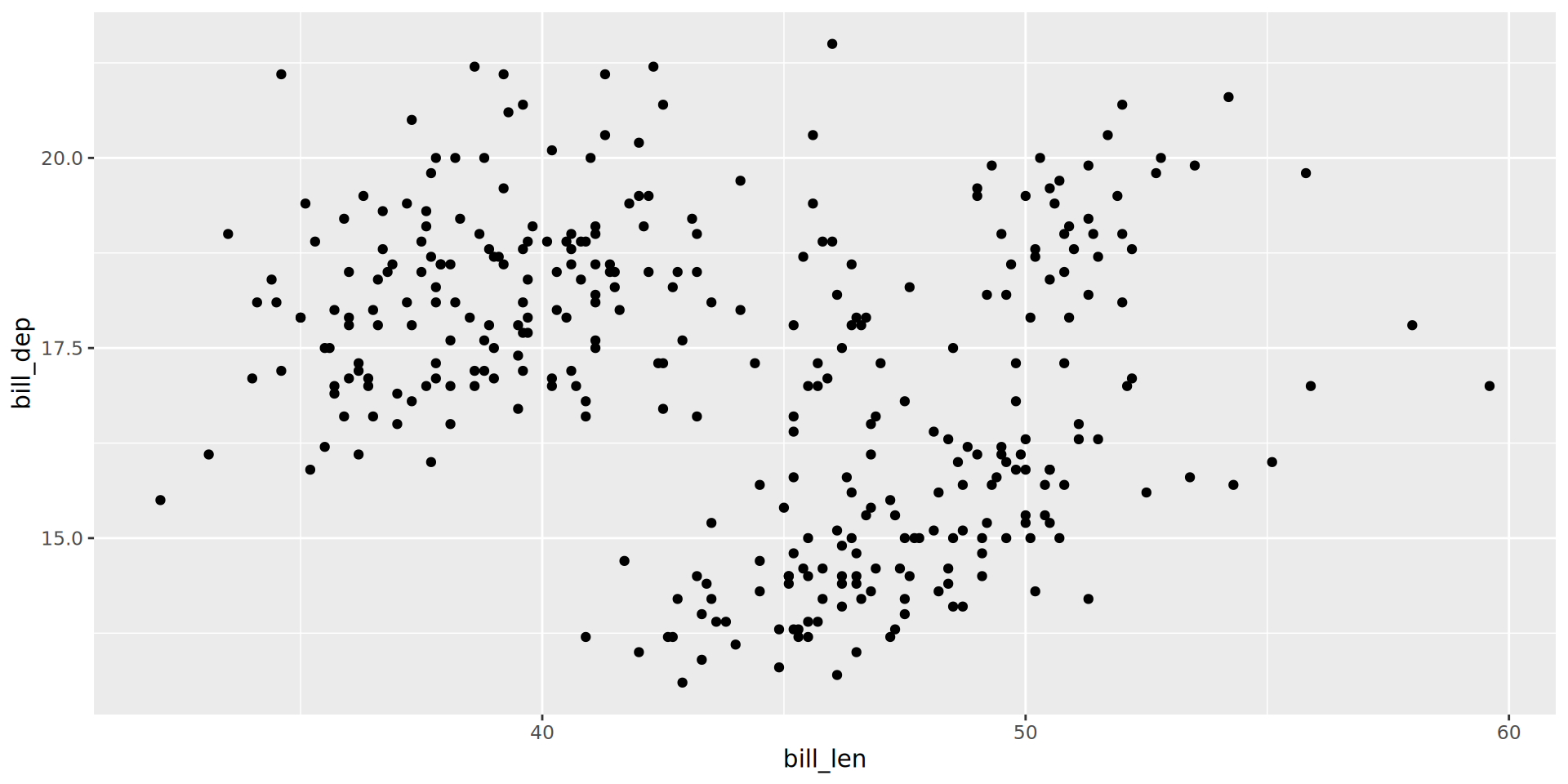
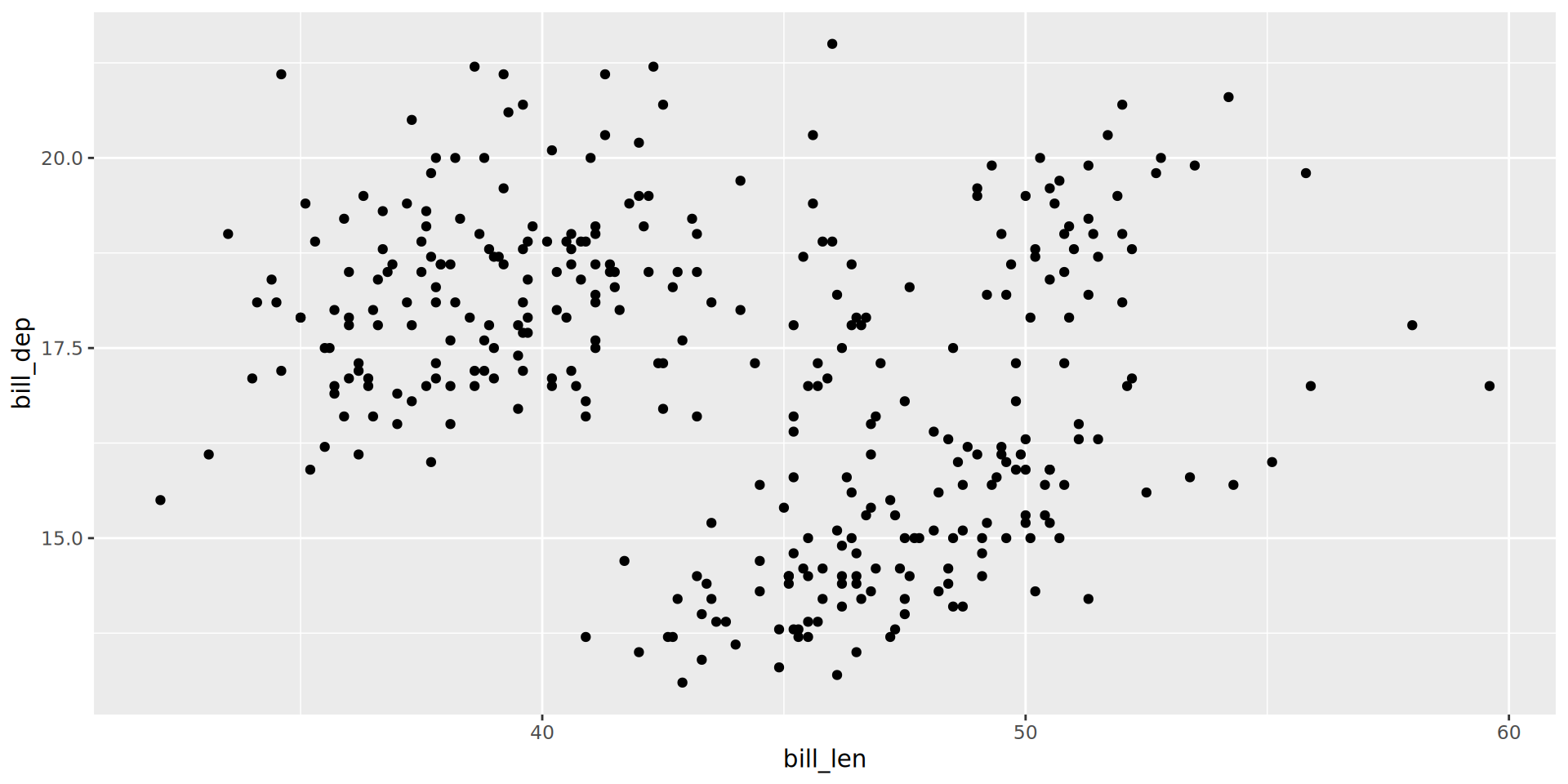
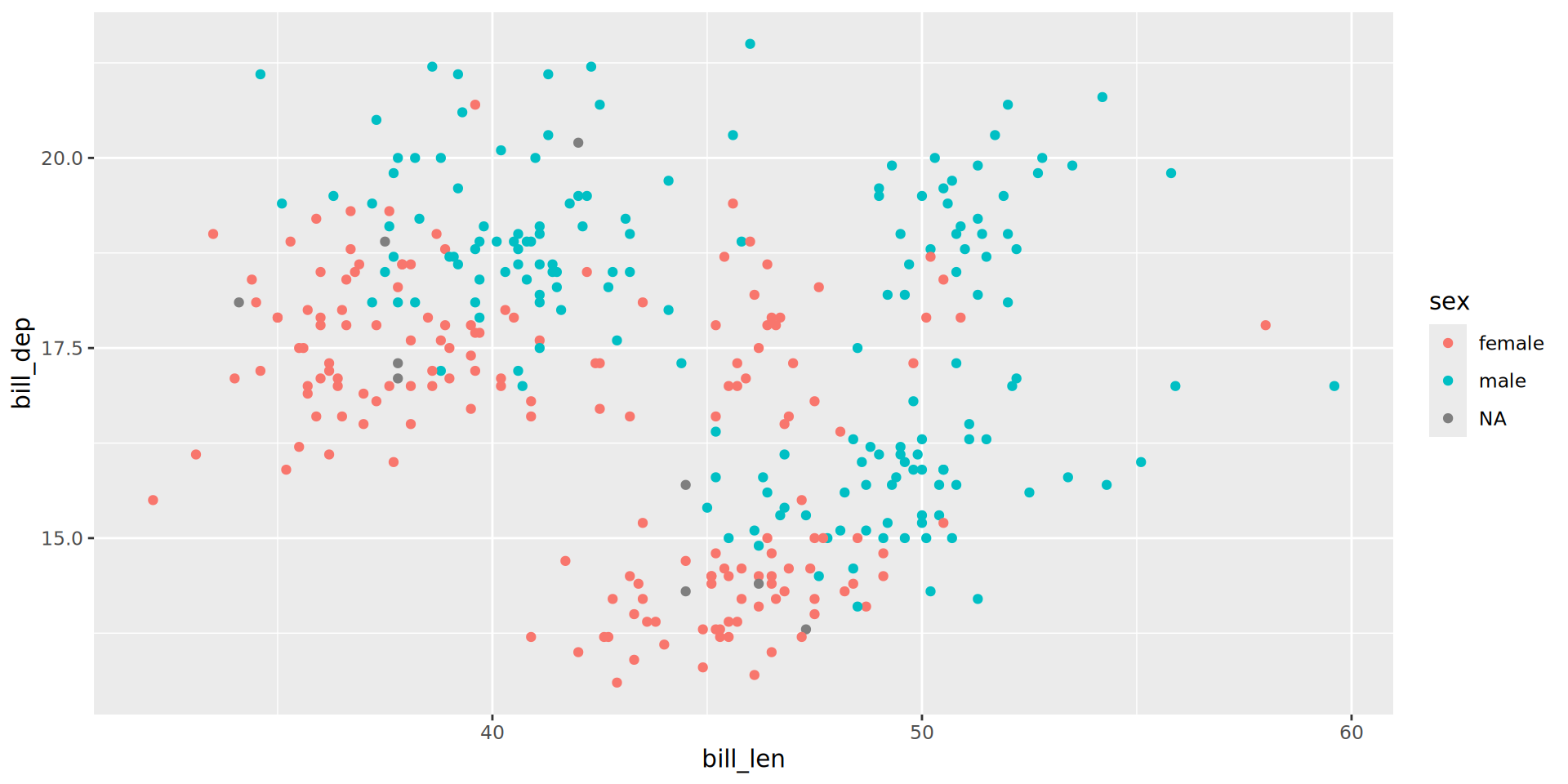
Using ggplot and mapping variables to colour, identify which of the categorical variables in penguins best explains the sub-grouping we observe in bill depth vs length.
Hints:
glimpse() and summary() are useful functions for looking at your data.
Even if you have found a variable that looks like it explains your data, did you check whether other variables also look like they explain the data?
Hypothesis: You cannot imagine a plot that can’t be made with ggplot
Challenge: I challenge you to clearly describe a plot or visualization that cannot be created in ggplot. There is a prize available.
Conditions:
You must be able to describe this clearly, to the point where we as a group all agree on what you are requesting.
This must be a plausible static visualization (i.e., no 3-dimensional, sound-producing scifi graph).
You must give us your description by the start of Day 2 at the latest, and you must give us your description as soon as you come up with it.
No LLMs.
If, by the end of our final day, I haven’t been able to build OR find a plot that represents data as per your description, you win.