Working with git

Code versioning

27 November 2025

Introduction to git

Contents

  • Short introduction
  • Guided tutorial

Learning objectives

  • Basic principles of code versioning
  • Know sufficient details of submitting your practicals
    • Setup
    • Using RStudio
    • Registration of changes (add, commit)
    • Upload your changes to your repository (push)

Project setup

├── analysis.R        
├── analusis_2.R
├── analusis4.R
├── Repro.Rproj
├── parse_data.sh
├── mydata 
│   ├── facs.xlsx
│   └── single-cells.txt
├── old_scripts/
│   ├── analysis_final.R
│   ├── analysis_final_2.R
│   ├── analysis_final_3.R
│   ├── analysis_tmp.R
│   └── analysis_final_nature.R
├── Analysis-Ifrontiers_biomed-Machine_learning.R 
├── Manuscript_2025-oct.docx
├── Manuscript_15-oct2.docx
├── Manuscript_15-oct2-PI.docx
└── Manuscript_Sept-2025.docx

Keeping things tidy

  • How to keep older versions of scripts?
  • How not to lose good, working code when changing things?
  • How to share code with others for collaboration?

Version control

Code versioning systems support you in all of these use cases.

Project setup

├── analysis.R
├── .git/
├── Repro.Rproj
├── parse_data.sh
│   ├── FACS.exe
│   ├── plink1.09
│   ├── plink1.7
│   ├── plink2.0
│   └── R3.6/
├── mydata 
│   ├── facs.xlsx
│   └── single-cells.txt
└── report.qmd

Keeping things tidy

  • How to keep older versions of scripts?
  • How not to lose good, working code when changing things?
  • How to share code with others for collaboration?

Version control

Code versioning systems support you in all of these use cases.

Project setup

├── .git/         # Code versioning
├── .gitignore  
├── Repro.Rproj
├── R/           # All R code you write
│   ├── analysis.R 
│   └── utils.R
├── data/ -> symlink
├── README.md     # Project information
└── report.qmd    # Quarto document 
  • Version control

  • Reproducible documents

  • Default location for your source data

Note

More advanced setup to handle packages, data provenance and coding will be covered in other courses.

Code versioning

Basic steps in code versioning

  1. Register (add) files in a project called a repository

  2. Track changes (commit) resolutions.

  3. Take a look at the history

  4. Go back in time

Sharing your repository

  • Global platforms for sharing repositories with others

    • GitHub, a global platform owned by Microsoft
    • GitLab, gitlab-cloud.uni.lu used by the university of Luxembourg
  • Both platforms offer additional functionality such as issue tracking, releases, automated code checks

  • Here, we cover Git as far as easily accessible from RStudio

Working with the repository

Add a file to the staging area

Using RStudio git panel:
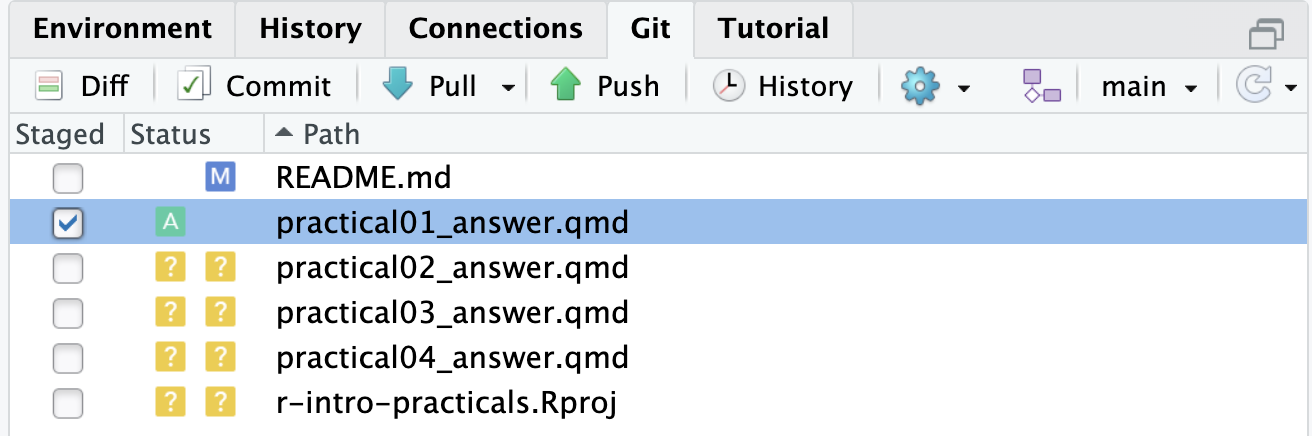
Command line equivalent

git add practical01_answer.qmd

Commit changes

  1. A modified file is tagged with M.
  2. Click to stage the change.
  3. Then commit to register the change in the history.
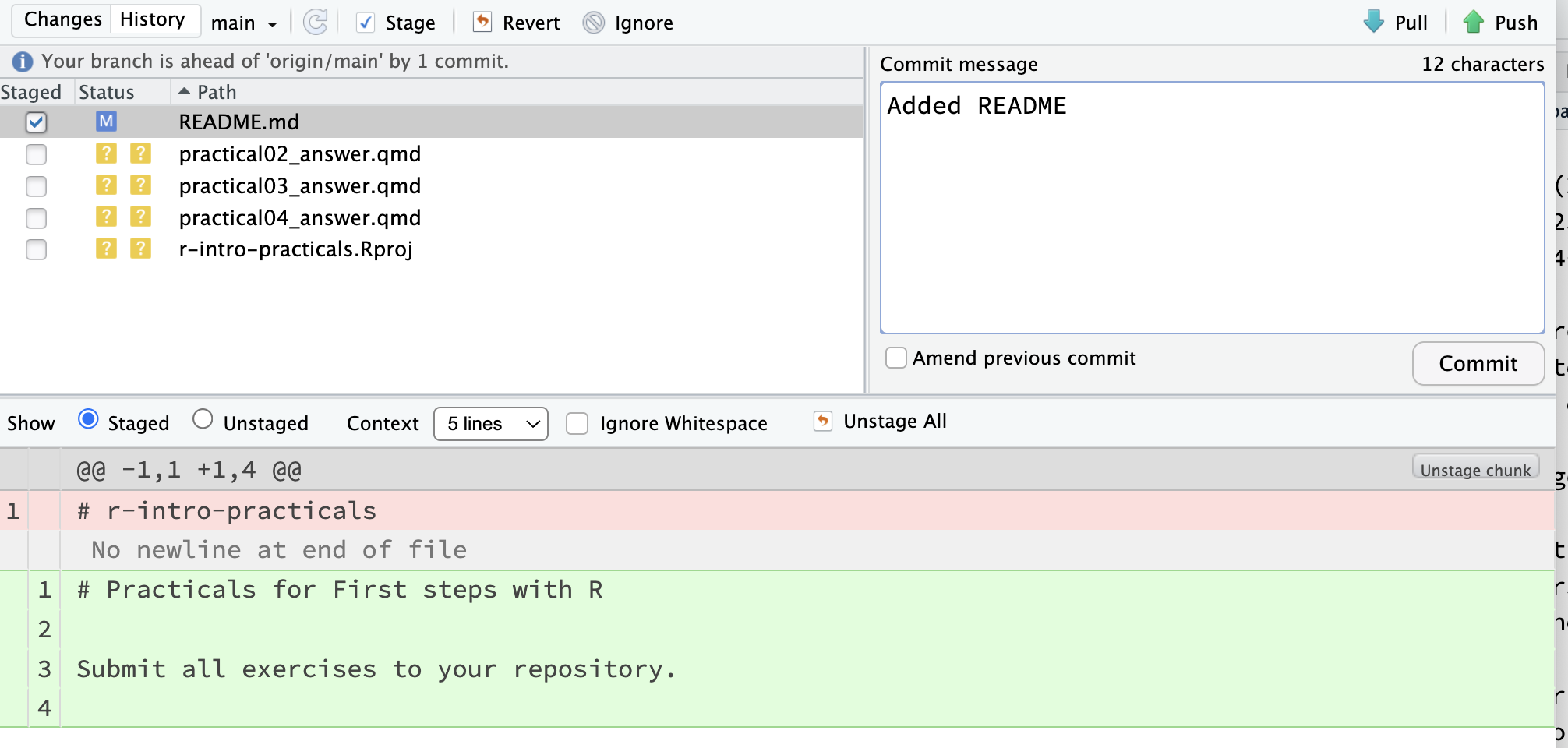
Command line equivalent

git commit -m "Added README.md"

Note

  • All changes are local

  • You do not need to share your git repository

Git history

Git history in RStudio
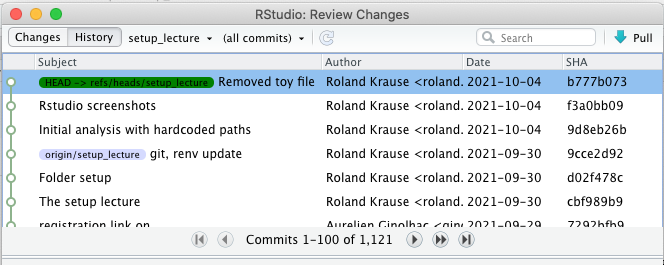
Make use of older versions

  • Move between commits to inspect any changes you have made.
  • Check out an older version to check for a functional test

Exceptions for version control

Keep out

  • Derived files (e.g. *.html)
  • Data products (.RData)
  • The source data

Make your life easy with .gitignore

.RData
**.Rproj
**.pdf
**.tex
.DS_Store
data/
*.html

GitHub classroom configuration

Installation

  • Complete the install tutorial if you haven’t already including the Github setup with SSH

  • Make sure that your Github account is configured with SSH.

Check the github-classroom

Follow this link and authorize it
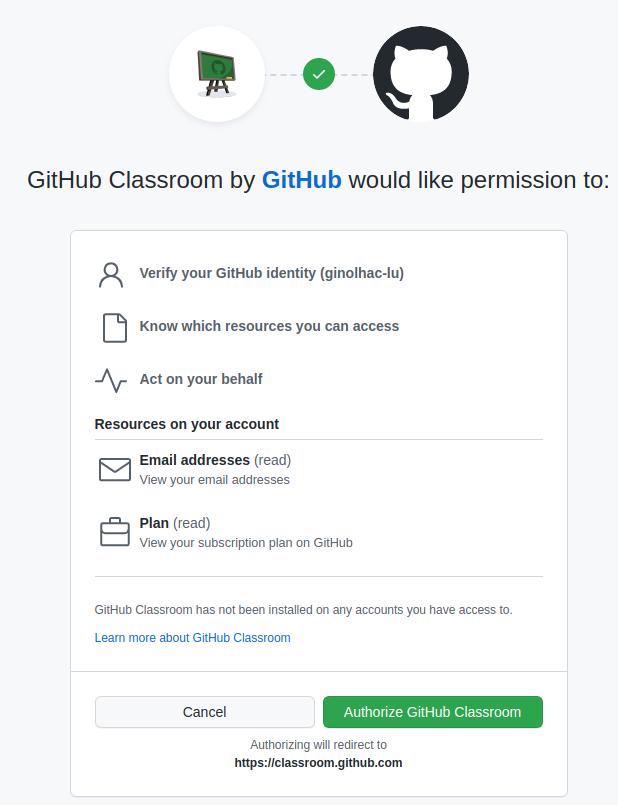
2. Accept the assignment

You should see this invite:
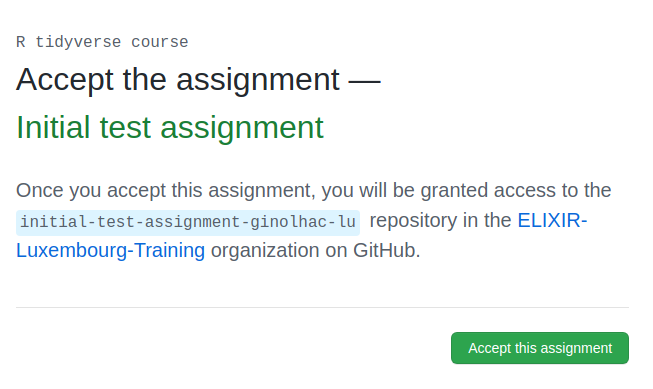
Check the repository

Go to the assignment

  • Reload the browser page

  • The assignment is created in your personal github repository.

  • Click on the link with the blue background
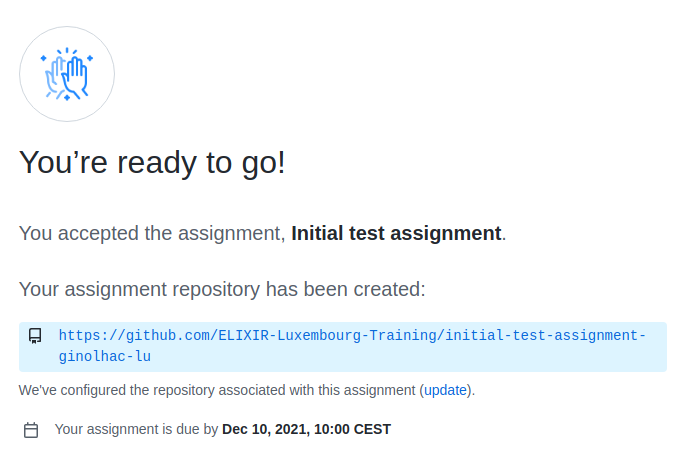
Check your own repo

It should look like this:
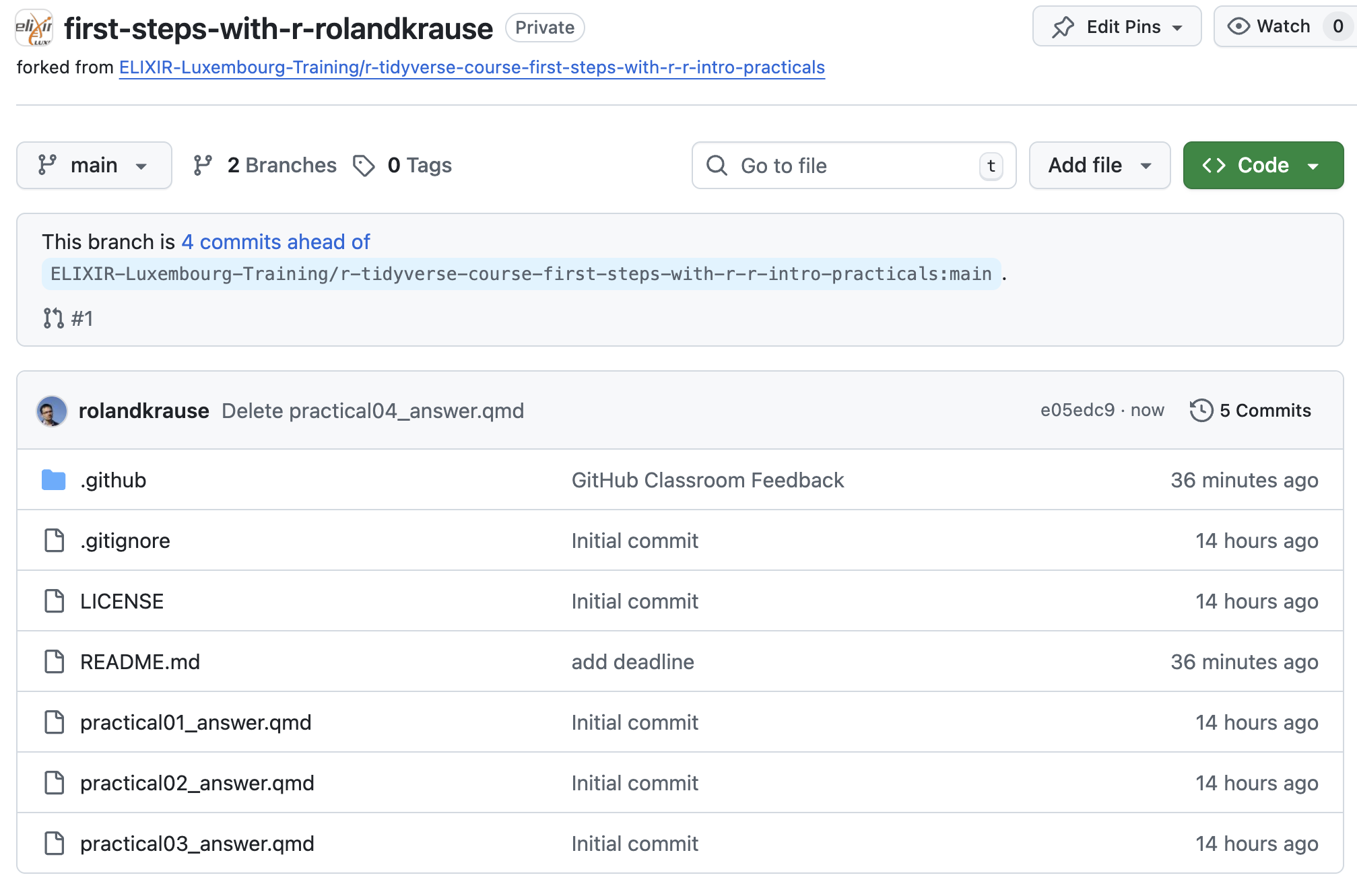
Copy the Code SSH URL

Make sure to use the Git Clone with SSH!
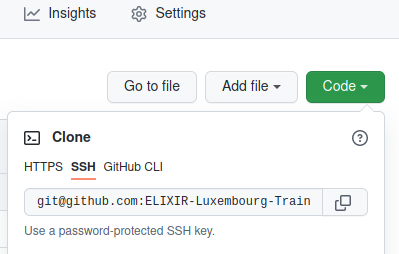
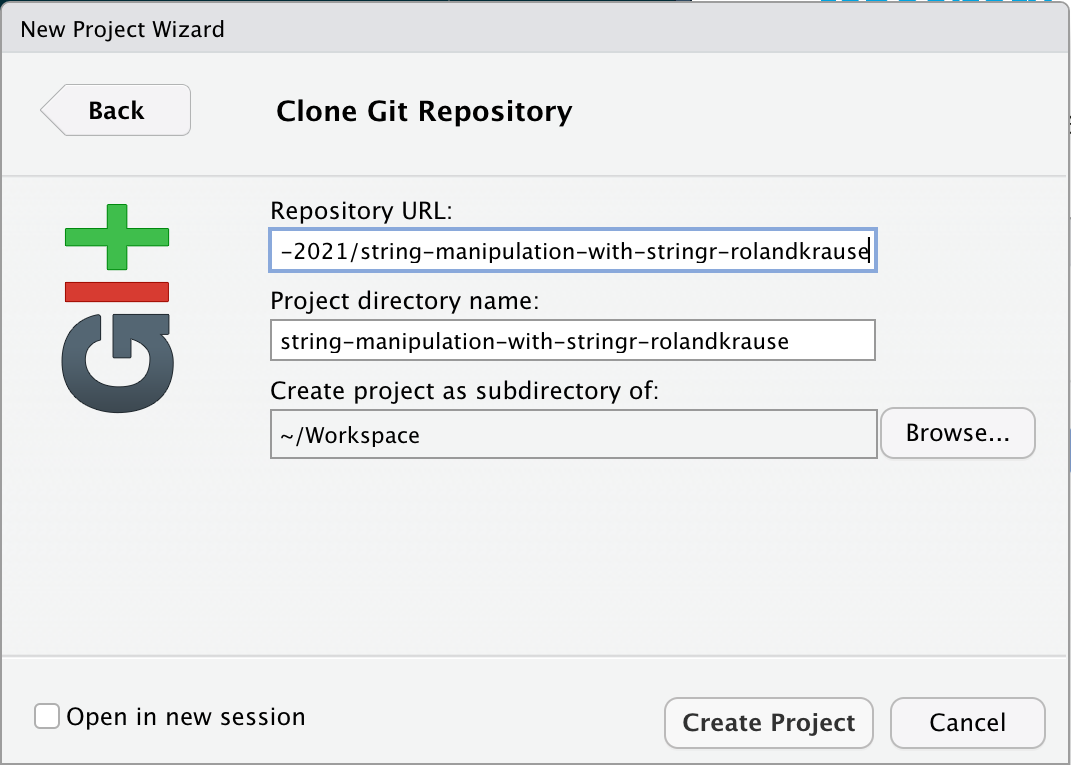
Clone the repository and complete the practical

Insert the URL for a new Git project

In Repository URL
Troubleshooting

Only if cloning in RStudio does not work, try to run the code below on the command line. You need to replace repo_url with the URL of your repository.

git clone _repo_url_

Complete the actual assignment

Complete the instructions given in the README.md document.

Conclusion

Learning git

  • Use git to version your code
  • add, commit, push is great to get started
  • git is essential for collaboration
  • Your future you is the first to benefit